Setting up a payment reference rule
You can use payment reference rules in Continia Banking to automatically reconcile payment references such as FIK, SCOR, and Swiss QR. These default rules identify references in the document number or payment reference fields. You can also create your own rules to match imported bank statement lines with open ledger entries.
Key considerations
- Mandatory fields - fields marked with a red asterisk (*) must be completed to prevent errors.
- Notifications - if any settings are missing or incorrect, notifications appear in the Bank Acc. Reconciliation or Payment Reconciliation Journal, helping you identify and address issues. For more information, see Payment reference rules FAQ.
- Don't change default rules - default rules cannot be deleted, only disabled. To customize a default rule, click Copy Payment Reference Rule.
- Test a rule - before using a payment reference rule in production, verify that it correctly matches and processes references. You can test the rule on the Test FastTab.
To access payment reference rules
You can access payment reference rules from the Banking Import Setup page or by searching directly:
- On the Banking Import Setup page, on the action bar, click Manual Setup > Payment Reference Rules. Alternatively, search () for and select Payment Reference Rules.
- On the Payment Reference Rules page, you can view predefined rules. Continia Banking comes with a set of predefined payment reference rules, including FIK71, FIK71-PREFIX, QR, and SCOR.
- Click a rule to view its configuration. For more information, see To set up payment reference rules.
- Click Home > Download Payment Reference Rules to download the latest payment reference rules.
To set up payment reference rules
To set up a payment reference rule:
Search () for and select Payment Reference Rules. Alternatively, go to the Payment Reconciliation Journal or Bank Account Reconciliation page, and on the Rules tab, select Payment Reference Rules.
On the Payment Reference Rules page, on the action bar, click New to create a new payment reference rule. Alternatively, click Copy Payment Reference Rule to use a default or previously set rule as a template.
Note
Existing payment reference rules are not editable directly. Any changes you make are overwritten. If you try to edit one, you'll see an error message that prompts you to copy the rule by selecting Copy Payment Reference Rule.
Configure the rule fields. Complete all fields marked with an asterisk (*):
- Code - enter a unique code.
- Payment Reference Search Field Template - specify where the reference appears in the bank statement. For more information, see Using templates in Banking Import.
- Allow Multiple Applications - enable to create payment application proposals for all matching entries. If this option is turned off, only the first matching entry is applied. For an example, see Payment reference rule examples.
- Validation Pattern Code - use a regular expression to define the reference format. For details, see Regular expression structure for matching payment references.
- Match to Table - select the table (by caption name) in Business Central to match against.
- Match to Field - select the field to match against.
Configure optional matching settings:
- Transformation Rule - select a transformation rule to modify the payment reference before matching. You define and manage transformation rules on the Continia Banking Import Transformation Rules page. For more information, see Creating a transformation rule and Payment reference rule examples.
- Direct Match - enable to match the entire payment reference directly to a field in Business Central, without extracting a substring. Use this when references are consistent, such as invoice numbers or external document numbers. For more information, see Understanding exact matching using direct match.
- Match Document Type - Document type matching lets you extract indicators from payment references to identify the type of document (e.g., invoice, credit memo) in Business Central. Enable Match Document Type in a Payment Reference Rule and set the start position and length of the indicator. Create Document Type Mappings to link extracted codes (like "INV" or "CM") to BC document types. The system uses these mappings during reconciliation, leaving the document type blank if no mapping exists. Always link at least one mapping and test the rule to ensure accurate extraction and matching. For more information, see Working with document type matching.
- Reference Start Position/Reference Length - reference positions let you extract a specific part of a payment reference for matching in Business Central, useful when references include extra characters, prefixes, or structured information. Set Reference Start Position and Reference Length in the payment reference rule to define which substring to extract. These fields are mandatory when Direct Match is disabled, and the system uses them to isolate the relevant portion for matching. Validation patterns and check digit algorithms can still be applied to the extracted substring. Always verify start position and length, and test the rule to ensure accurate extraction and matching. For more information, see Working with reference positions
- Check Digit - enable to validate using a check digit algorithm. Configure the algorithm and parameters. For more information, see Configuring check digit validation.
- Disabled - select to temporarily disable the rule.
- Statement Type - on the Rule Filter FastTab, set filters to control when a payment reference rule is applied. You can filter by statement type (for example, CAMT.054), bank code, or bank account number. While default settings often suffice, filters help ensure that rules apply only to relevant transactions. More specific filters take precedence when multiple rules match. Use filters to avoid rule conflicts and improve matching accuracy across banks, accounts, and statement types.
To test a payment reference rule
Before using a payment reference rule in production, always test it to confirm that it matches and processes references correctly. You can do this on the Test FastTab.
If the rule doesn't behave as expected, review the validation pattern, check digit settings, and extraction positions.
To test a payment reference rule:
- Open the rule for editing. On the Test FastTab, enter a sample payment reference in the Test Text field.
- Click Test action to run the validation.
- Review the test results. The system will display results with colored indicators:
- Green text - valid results. The reference matches the validation pattern and passes all enabled validations (check digit, length, etc.).
- Red text – invalid results. The reference fails one or more validations.
Note
When you test a payment reference rule that uses Match Document Type, the test tool shows whether the document type indicator found in the payment text can be mapped to a document type. A green message indicates that the indicator was mapped successfully. A red message indicates that the indicator couldn't be mapped because no indicator was found or no matching document type mapping exists.
- Adjust and retest. Modify the rule configuration or test text as needed. Click the Test action again to view updated results.
Note
Test results only update when you click Test, not when you change fields.
To disable a payment reference rule
Use this procedure to temporarily stop a rule from being applied during statement import:
- On the Payment Reference Rules page, open the default rule you want to disable.
- Select the Disabled checkbox.
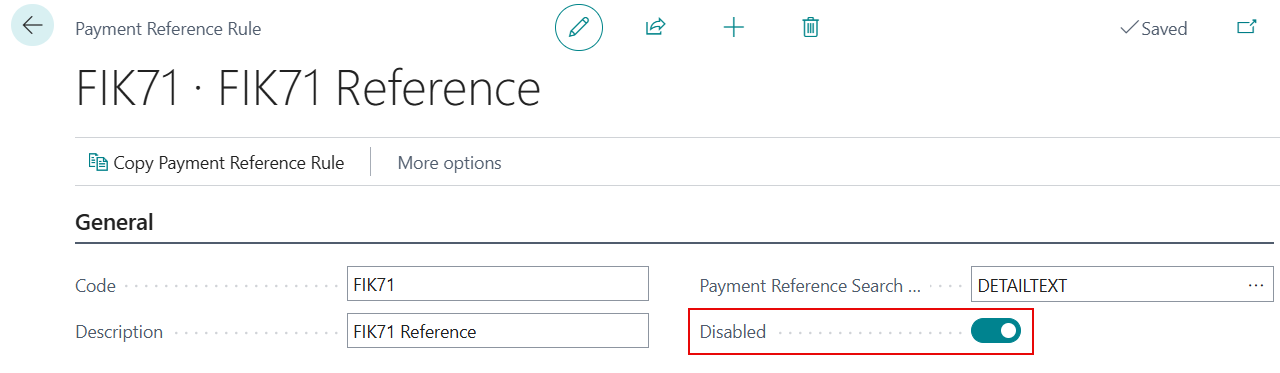
Disabled rules remain in the system but aren’t used during statement import.
Related information
Validation pattern codes for matching payment references
Default payment reference rules
Configuring check digit validation
Payment reference rule examples
Payment reference rules FAQ
Working with reference positions
Understanding document type matching
Understanding exact matching using direct match